Company Settings Fields
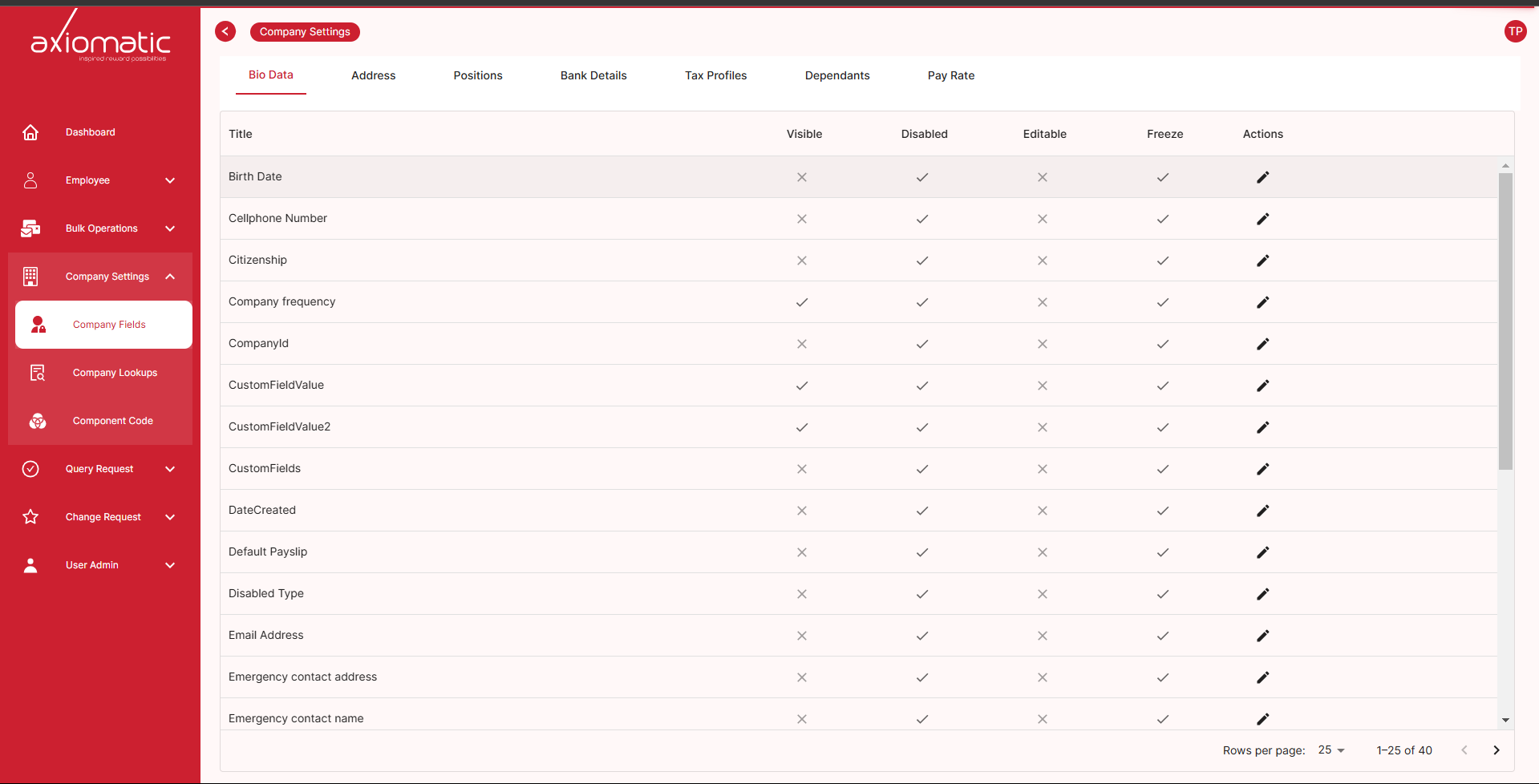
This page allows you to customize company fields. Here, you can tailor the visibility and behavior of fields across different employee data tabs. This guide will help you understand how to use these powerful customization options effectively by selecting certain fields to be visible, editable, readable etc.
Overview
Field customization allows you to control how employee data fields are displayed and managed in the system. You can:
-
Show or Hide Fields: Choose which fields are visible or hidden in employee data tabs by simple ticking the field.
-
Enable or Disable Fields: Control whether specific fields are editable or not by simple ticking the box of that fields.
-
Set Fields as Read-Only or Editable: Define whether certain fields can be modified or remain in read-only mode.
-
Freeze Fields: Prevent accidental changes to critical data by freezing them.
Edit Fields
Let’s dive into the details on how to use these options:
you first have to select the action icon to be able to customize or edit these fields. By simple clicking the action button, the check boxes become clickable and the whole row goes into edit mode.
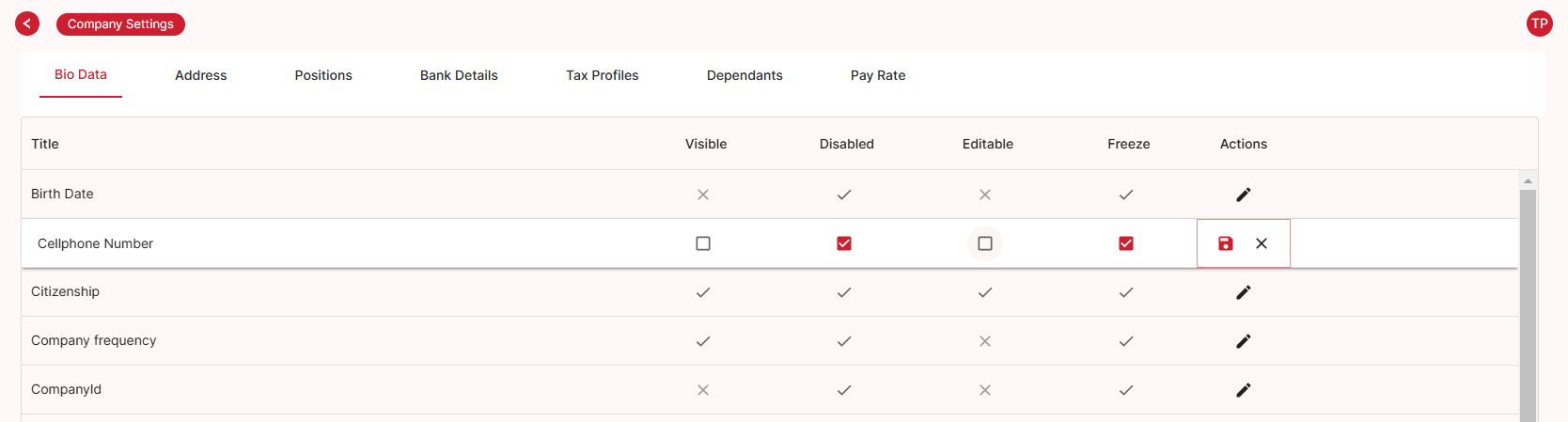
- To make fields visible in employee data tabs, select the checkboxes next to the fields you want to display.
- If there are fields you don’t need, simply deselect the checkboxes next to them to hide them from view.
- To control field editability, use the “Enable/Disable Fields” option. Check the boxes next to the fields you want to enable for editing.
- Choose whether specific fields should be read-only or editable. Check the boxes to enable editing.
- fields that should never change, check the “Freeze Fields” box to make them unalterable.
You can save the changes for each edited row you would have done by clicking the red disk[💾] icon on the right in the Actions column.
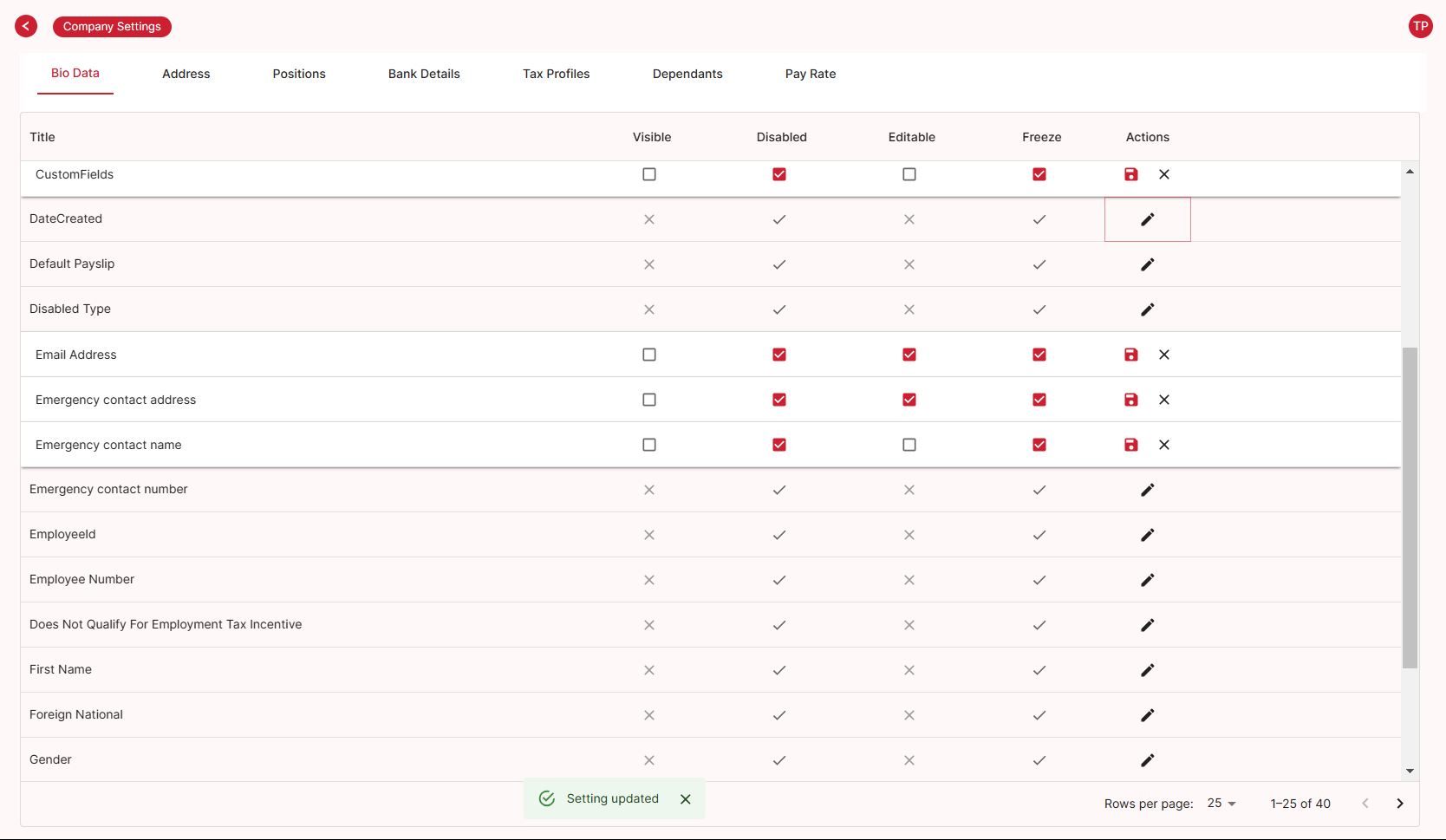
By following these steps, you can fine-tune the appearance and behavior of employee data fields, ensuring they align perfectly with the requirements.